
When working with Framer, managing your pages efficiently is key to keeping your designs organized and streamlined. Sometimes, you may need to delete a page to tidy up your project or remove unnecessary elements. This piece explains how to remove a page in Framer step by step, ensuring that even beginners can follow along easily. Whether you’re dealing with a complex project or just tidying up, knowing the right way to delete pages will save you time and hassle.
Framer Sites powers over 69,000 live websites worldwide, with 32,683 in the United States alone. – Framer Sites Usage Statistics

Understanding Framer and Its Page Management
It is crucial to grasp how Framer handles pages. Framer is a powerful tool designed for creating interactive prototypes with ease. Pages in Framer act as different screens or states within your project, allowing you to design and test various user flows seamlessly.
Framer delivers projects 3x faster and reduces deployment time by 66% compared to other platforms like WordPress, Wix, Squarespace, Webflow, and design tools such as Adobe XD and Sketch. – Site Management in Framer
Why Remove a Page in Framer?
Over time, as your project evolves, you might accumulate pages that are no longer relevant. These can clutter your workspace and slow down your progress. Here’s why learning how to remove a page in Framer can be beneficial:
Decluttering your project: Removing unnecessary pages helps you maintain a clean and organized workspace.
Improving navigation: Fewer pages mean easier navigation and faster access to the parts of your project that matter.
Enhancing performance: Streamlining your project can lead to better performance, particularly in larger, more complex designs.
Step-by-Step Guide | How to Remove a Page in Framer
Removing a page in Framer is straightforward once you know the steps.
Step 1: Open Your Framer Project
Start by launching Framer and opening the project from which you want to remove a page. Ensure you’re in the correct workspace to avoid deleting the wrong page.
Step 2: Navigate to the Pages Panel
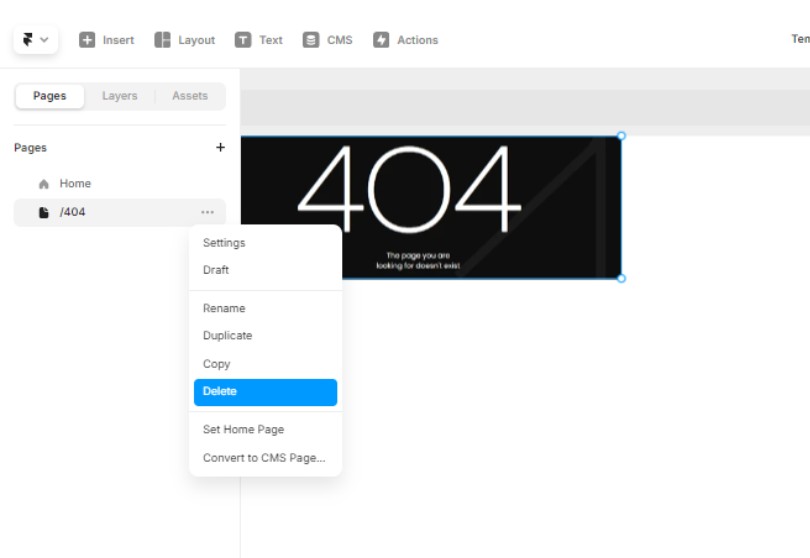
On the left sidebar, you’ll find the Pages panel. This section lists all the pages within your project, providing a clear overview of your project’s structure.
Step 3: Select the Page to Remove
Browse through the list and select the page you wish to delete. Click on the page name to highlight it. Ensure you’ve selected the correct page to prevent accidental deletions.
Step 4: Delete the Page
With the page selected, right-click to open the context menu and choose the Delete Page option. Alternatively, you can select the page and press the Delete key on your keyboard.
Things to Consider Before Deleting a Page in Framer
While the steps to delete a page are pretty simple, adhering to best practices ensures you maintain the integrity of your project.
Backup Your Project: Before making significant changes, always backup your project to avoid data loss.
Undo Option: If you accidentally delete the wrong page, Framer’s undo feature (Ctrl+Z/Cmd+Z) can quickly restore it.
Review Dependencies: Check if other pages or components depend on the page you’re removing to prevent breaking links or interactions.
Organize Regularly: Regularly organizing and cutting/trimming unnecessary pages can keep your project efficient and easy to navigate.
How to Recover a Deleted Page in Framer
Accidentally removed a page? No need to panic. Here’s how to recover it:
Use the Undo Shortcut (Ctrl+Z/Cmd+Z).
Alternatively, if the page was saved in a previous version, you can use Framer’s version history to revert to an earlier state and recover the deleted page.
Common Issues and Troubleshooting
Even with a clear guide, you might encounter some issues with page removal. Here are a few common problems along with their solutions:
Issue 1: Page Not Deleting
Solution: Ensure you have the necessary permissions to modify the project. If the issue persists, try restarting Framer or checking for updates.
Issue 2: Unintended Data Loss
Solution: Always backup your project before deleting pages. Use version control to revert changes if necessary.
Issue 3: Broken Links or Interactionsss
Solution: After deleting a page, review your project to ensure no interactions or links are broken. Update or remove any dependencies accordingly.
Optimizing Your Framer Workflow
Here are additional tips to add to your workflow:
Use Consistent Naming Conventions: This makes it easier to identify and manage pages within your project.
Leverage Components: Reuse components across different pages to maintain consistency and reduce redundancy.
Regularly Update Framer: Keep your Framer tool updated to benefit from the latest features and improvements.
Related Tasks | Removing Other Elements in Framer
Now that you’ve mastered how to remove a page in Framer, you might want to explore how to delete other elements like components, frames, or even entire sections:
How to Remove Components in Framer: Simplifying your designs by removing unused components.
Managing Frames Efficiently: Keeping your frames organized for a smoother workflow.
Cleaning Up Unused Assets: Ensuring your project is free from unnecessary files and assets.
Expert Opinions
Renowned web developer Sarah Drasner has often emphasized the importance of keeping design projects clean and organized. She mentions, “In tools like Framer, less is more. Removing unnecessary elements not only keeps your project manageable but also enhances performance, particularly when working with complex interactions.”
User Testimonials
John, a UX designer who frequently uses Framer, shared his experience: “When I first started using Framer, my projects were cluttered with unnecessary pages. Learning how to remove a page in Framer was a game-changer—it made my workflow more efficient and my designs more focused.”
Why Streamlining Your Framer Projects is Important
It’s essential to understand the bigger picture here. Keeping your workspace organized by removing outdated or irrelevant pages will not only improve your workflow but also make collaboration with team members more efficient. A tidy project structure leads to better performance and fewer mistakes.
Final Thoughts
Learning how to remove a page in Framer might seem like a small task, but it’s an essential skill that contributes to a more organized, efficient, and effective design process. By regularly decluttering your projects, you ensure that your work remains streamlined and easy to manage, allowing you to focus on what truly matters—creating amazing designs.